Peer Reviews and Group Member Evaluations
A step-by-step walkthrough of the evaluations phase in PeerDoc. Follow these eight steps to be sure your reviews are recorded before the deadline.
Before you start
- Sign in at app.rampantstrategy.com. Evaluations work on a phone or tablet, but a laptop is easier when you have another group's work to read.
- Your instructor decides which parts are turned on. You may be asked to review other groups' work, to evaluate your own group members, or both.
- Nothing is recorded until you click Save on each individual review.
Open the assignment from your To-Do List
Log in at app.rampantstrategy.com and your To-Do List appears. Active Assignments shows one row for each phase that is open right now, so the same assignment can be listed twice: once for Peer Review Other's Work, and once for Group Member Evaluations.
Click the assignment name in either row to open it.
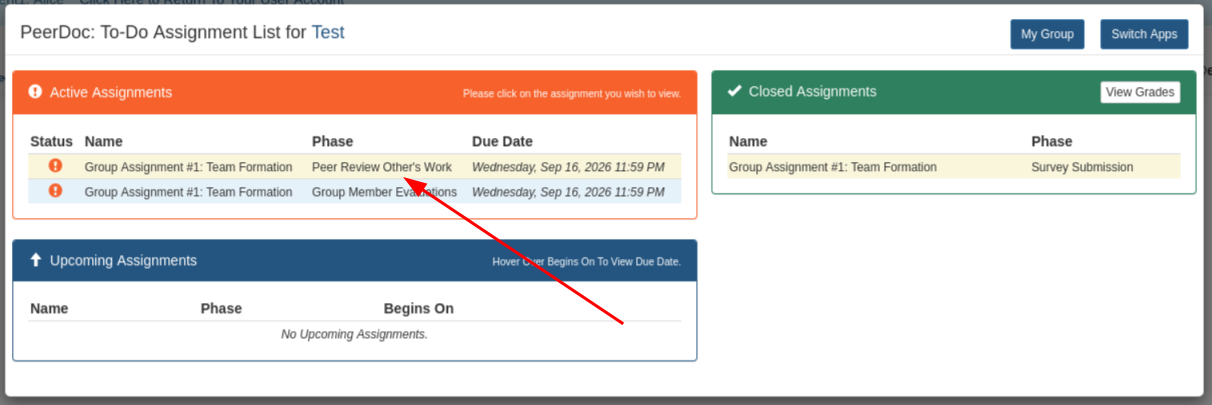
The red arrow points to what to click.
Click the Evaluations button
The Evaluations panel lists what is open, when it began, and when it is due. The Preview links let you read the questions before you start.
The lines in red underneath the button are your progress counters. They will keep saying you have completed 0 of however many are expected until you start saving your work.
Click Evaluations to open the review window.
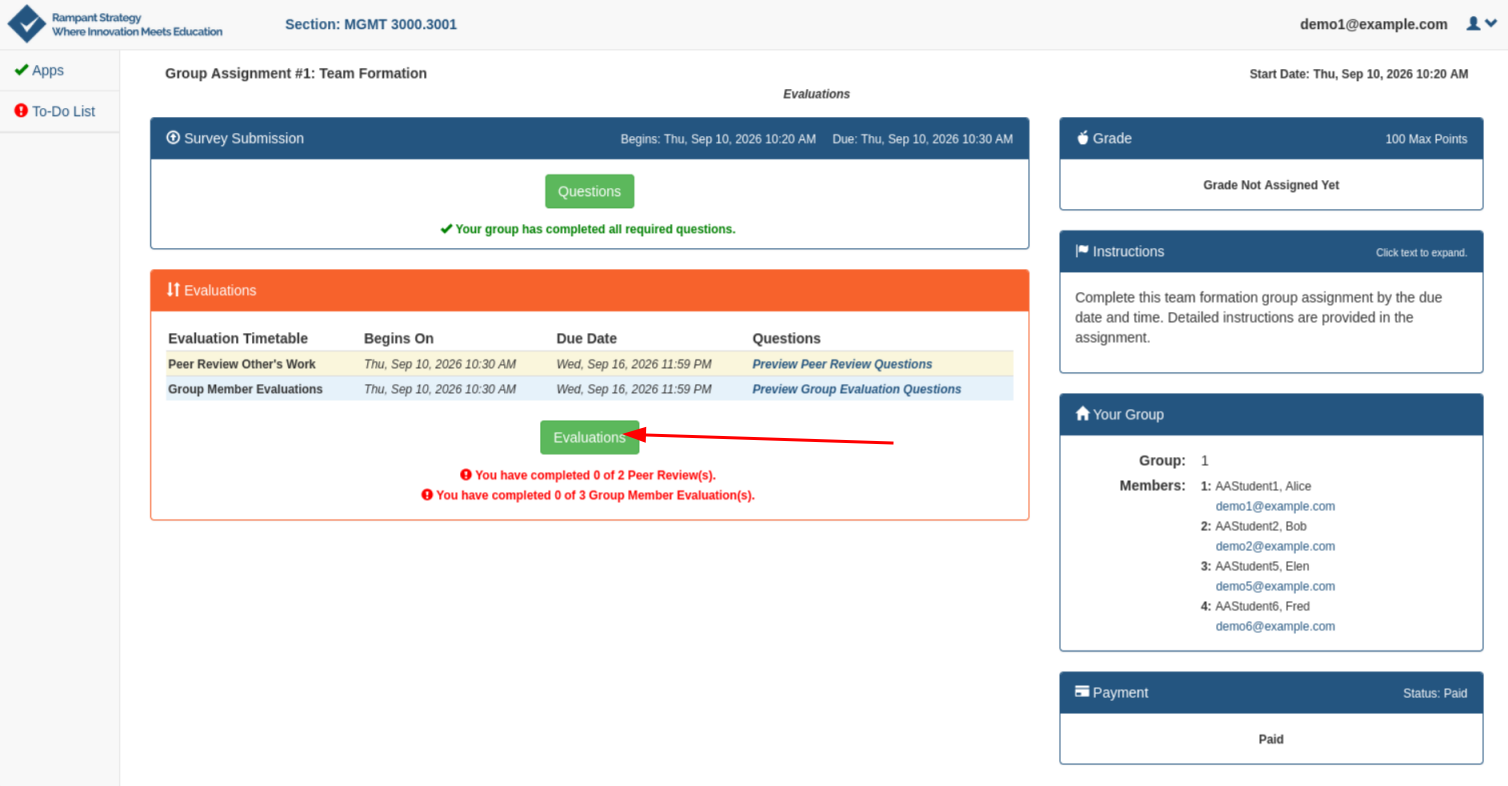
The red arrow points to what to click.
Choose a review from the list on the left
The left column lists everything you need to complete for this assignment. Peer Review Other's Work is another group's submission, listed as Blind Peer Review 1, Blind Peer Review 2 and so on when the review is anonymous. Group Member Evaluations lists your teammates by name, one entry each. You will not see yourself in that list.
The icon next to each item is your checklist. A red exclamation mark means it is still to do, and a green check mark means it has been saved.
Click the first item to begin.
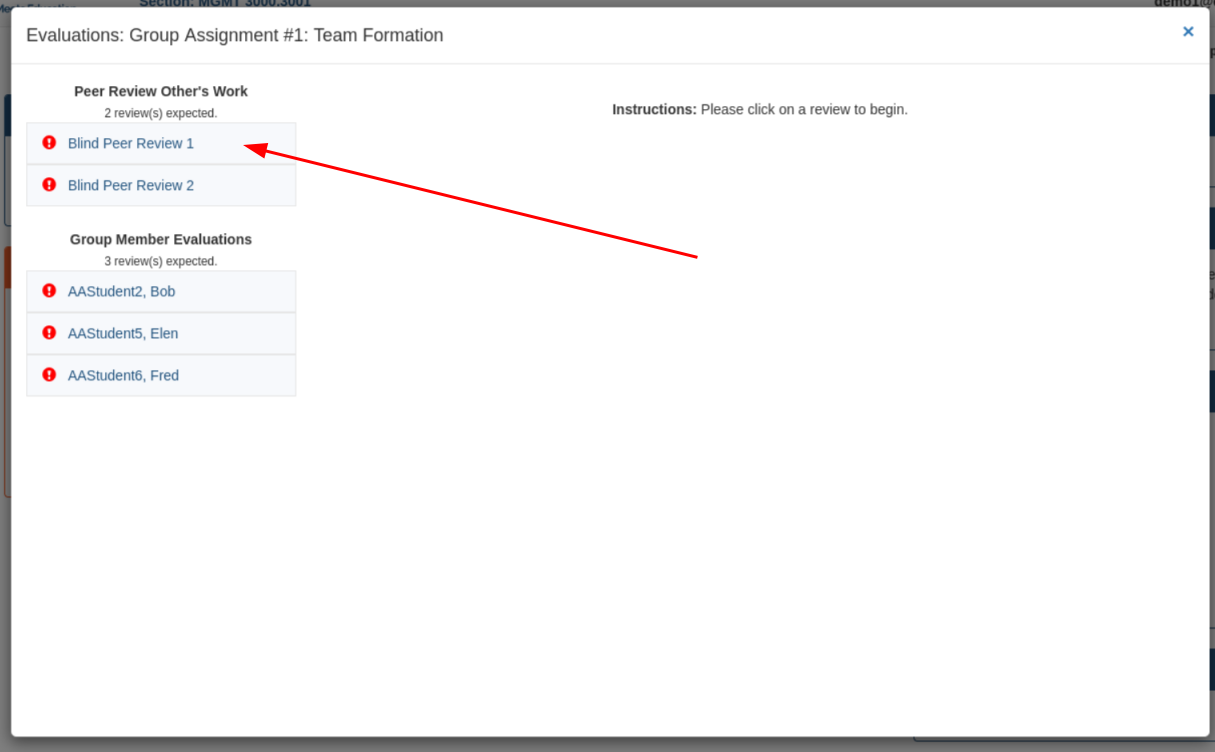
The red arrow points to what to click.
Read the submission, answer the questions, then Save
The work you are reviewing is at the top of the panel, either as files you can open or as the other group's written answers. Your instructor's questions follow underneath.
For a rating grid, click one box in each row. For a written answer, there may be a minimum number of words, and the note under the box counts down how many more you need.
Click Save. You can save as many times as you like before the deadline, and the version saved last is the one that counts. If your instructor turns on the feedback phase, the group you reviewed will be able to read your comments, so keep them specific and constructive.
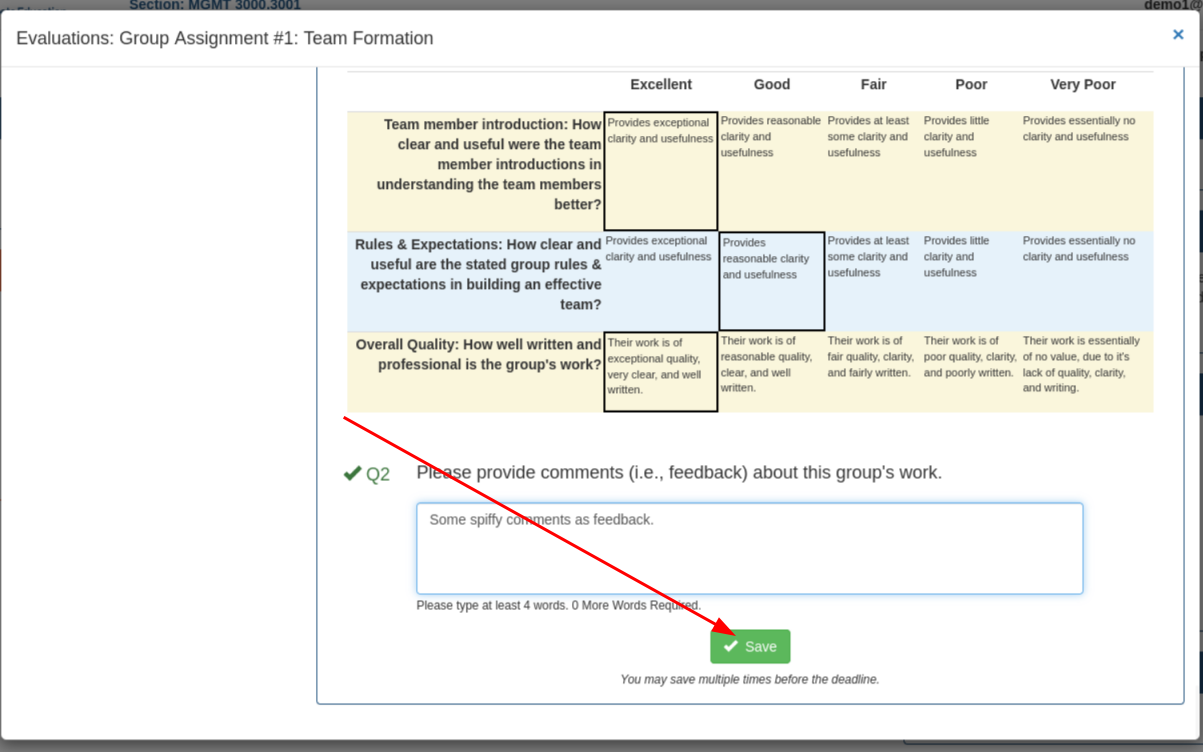
The red arrow points to what to click.
Watch for the green check, then open the next item
When a review saves successfully, its icon turns green and a Last Saved date and time appears at the top of the panel. That is your confirmation that it was recorded.
Click the next item in the left column and work your way down the list.
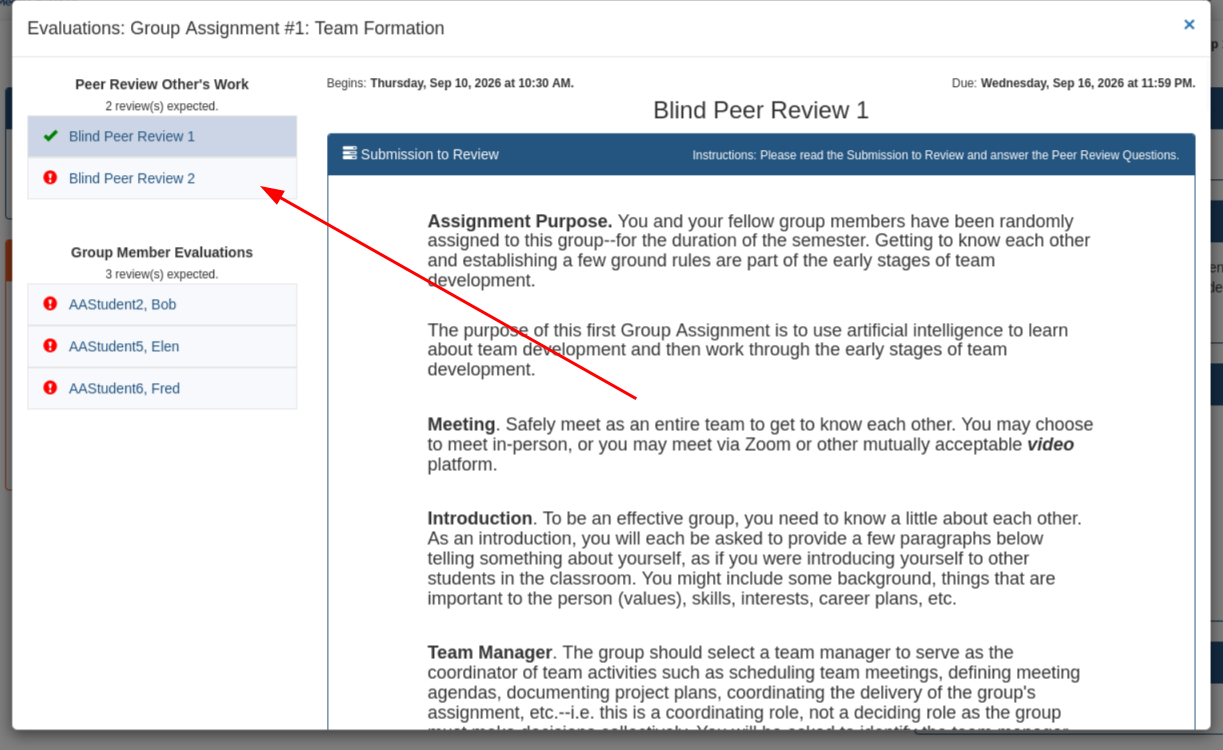
The red arrow points to what to click.
Move on to your Group Member Evaluations
Once every peer review in the top of the list is green, move down to Group Member Evaluations and click the first name to start evaluating your teammates.
If your instructor made group member evaluations optional, this section says Optional and each name shows a grey box instead of a red exclamation mark. Follow your instructor's directions about when to complete one.
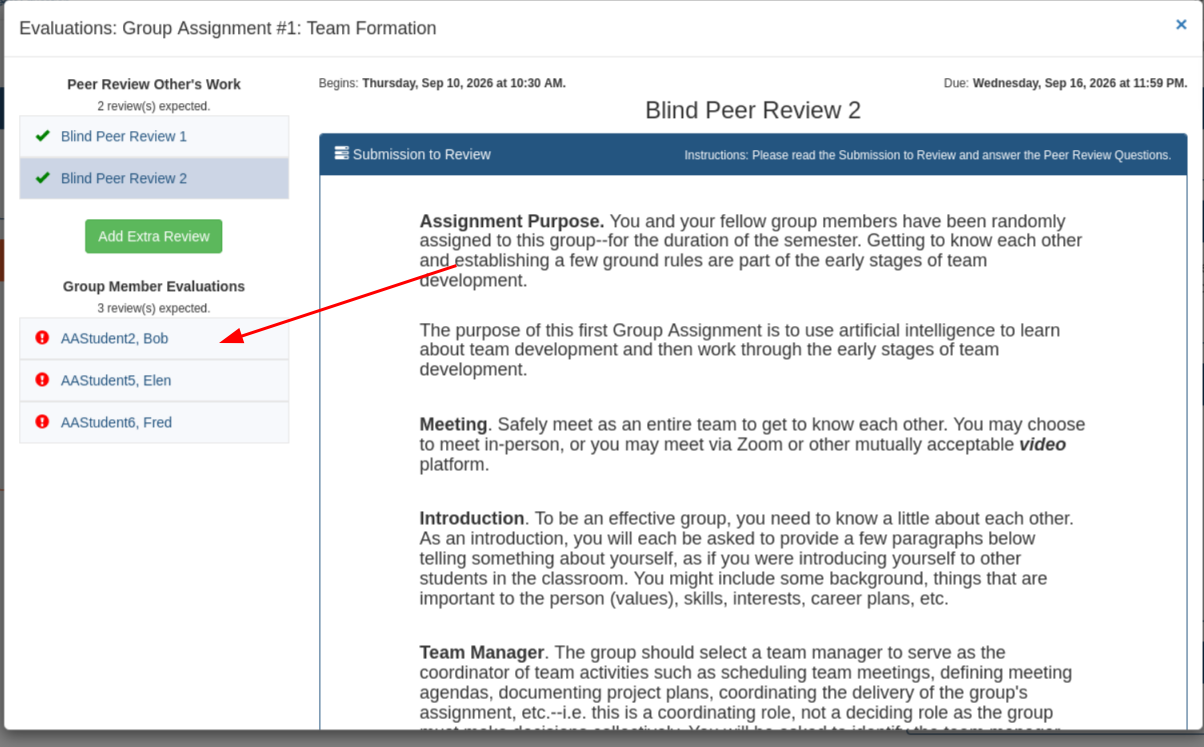
The red arrow points to what to click.
Rate the contribution and explain your rating
A group member evaluation usually asks how much that person contributed, then asks you to explain the rating you chose. Click a point on the scale, write your explanation, and click Save.
Your teammates do not see your ratings or your comments. They go to your instructor and teaching assistants, who read them when deciding whether individual grades should be adjusted, so be honest and give concrete examples.
Repeat for every name on the list.
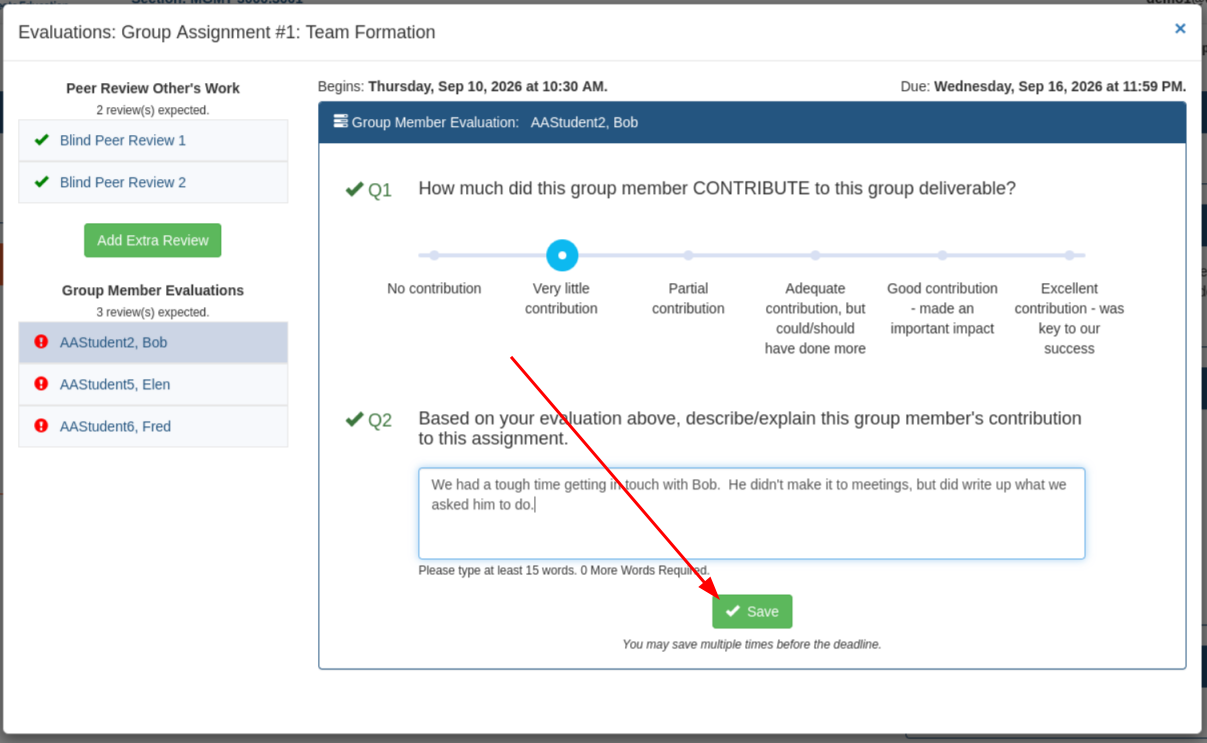
The red arrow points to what to click.
Check that every item is green before the deadline
You are finished when every item in the left column shows a green check mark. Anything still showing a red exclamation mark has not been recorded and will be counted as missing.
A grey box marks an optional group member evaluation you chose not to complete, which is not missing work.
Closing the window does not submit anything on its own. Only the Save button records your work, so check the whole list before you close it.
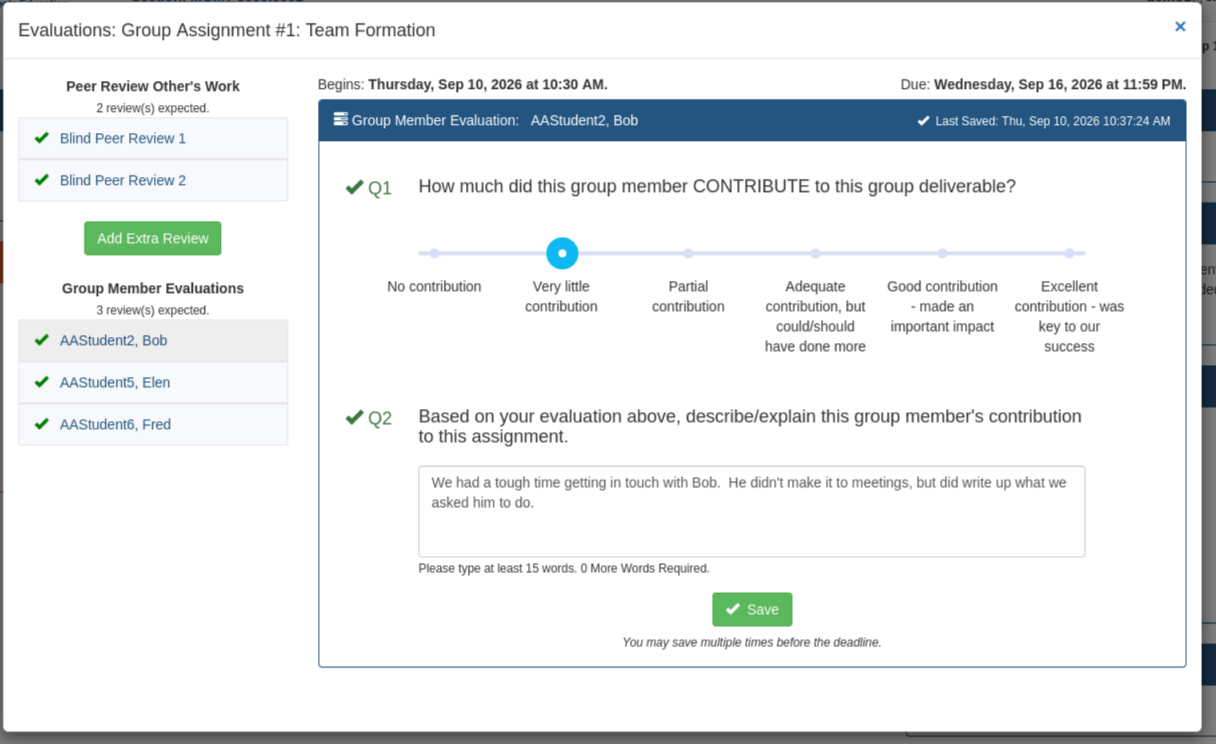
No arrow on this one. This is simply what a finished list looks like.
If something does not look right
There are no peer reviews for me to do
Most assignments require your own group to turn its work in before you are given anyone else's to review. Submit your group's work first, then refresh your browser.
I see an Add Extra Review button
Once your required peer reviews are all green, an Add Extra Review button appears below them. Click it and you are given one more submission to review, which is added to the bottom of your peer review list. It is not part of your required work, so only use it if your instructor has asked you to review something extra.
Save did not work
Check your internet connection and click Save again. If you have been signed out while the window was open, sign back in and reopen the assignment. Your last successful save is still there.
The deadline has already passed
Once the due date passes you can no longer edit and resave. If your instructor still allows a late submission you will get one attempt, so write your answer carefully before you save it.
My screen does not match these pictures
Instructors choose which pieces to use, so your assignment may have only peer reviews, only group member evaluations, or an extra Reflection where you answer questions about your own work. Group member evaluations may also be marked optional. The way you complete each one is the same: click it in the left column, answer the questions, and click Save.
Still Stuck?
Ask your instructor about anything specific to your assignment, or contact us if PeerDoc itself is not behaving.